
.svg)


.svg)





Construction Submittals Software That Keeps Projects Moving
Submittals that sync with your schedule.
Outbuild connects submittals to your schedule, shows submittal status in real-time, and keeps your procurement log organized, so work doesn't slow down.
Direct submittal sync from Procore and Autodesk.
Outbuild’s two-way integration pulls in submittals automatically and keeps them linked to their corresponding activities. Eliminate manual tracking and updates when your schedule accounts for submittals automatically.
Get a personalized demo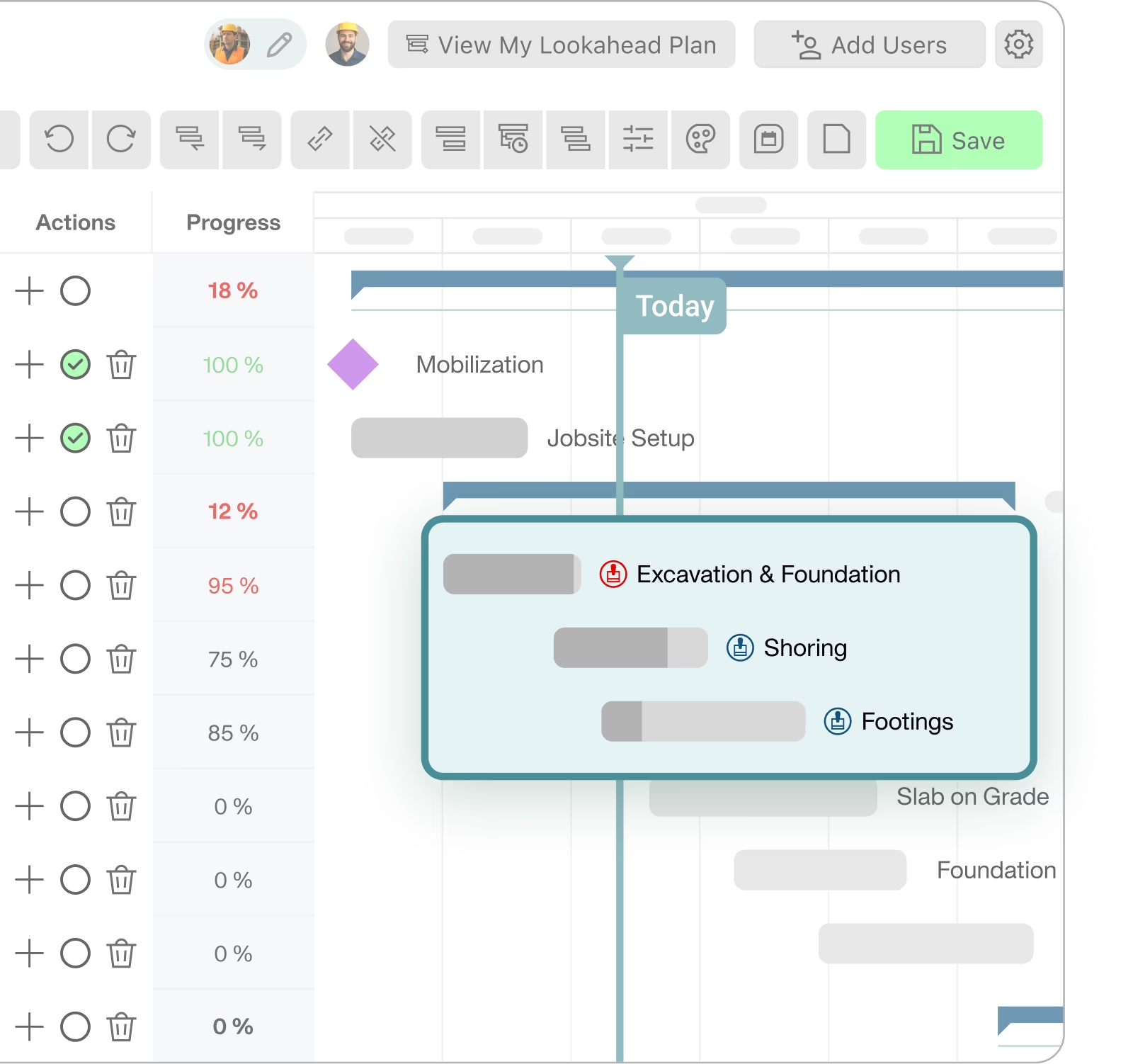

See risk status at a glance.
Color-coded icons appear directly on the Gantt view, showing whether a submittal is on track, at risk, or overdue. That means teams can spot schedule risks instantly, without digging through spreadsheets or reports.
Get a personalized demoAutomatic Procurement Log.
Outbuild automatically calculates required on-site dates for submittals based on connected schedule activities. No manual entry or spreadsheet log. Just real-time updates and clear accountability.
Learn more about Procore integration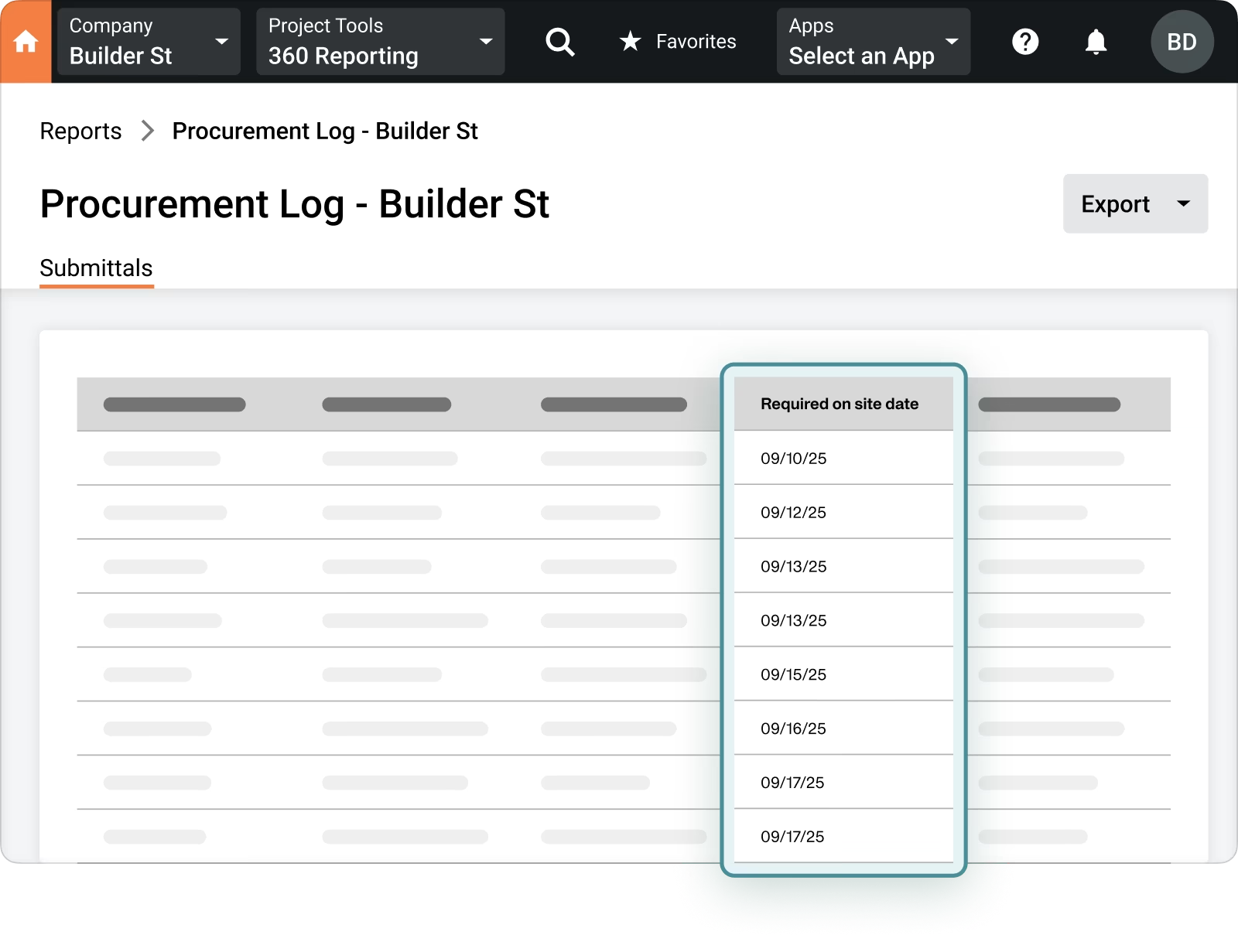
What our customers are saying.
From billion-dollar companies to smaller family-owned businesses. They all believe that construction deserves a better scheduling and planning tool.


.webp)
.webp)

Frequently Asked Questions.
What does Outbuild Submittal software do?
Outbuild connects submittals directly to your schedule so you can see approval risk tied to the work it affects. If you use Procore, submittals sync automatically and show risk status on the Gantt. If you use Autodesk, submittals created in Autodesk Forma sync into Outbuild and link to schedule activities — with required on-site dates that update automatically based on actual schedule dates, then push back to Autodesk. Either way, you get a clear view of which activities have submittals and whether those submittals are on time, in draft, or delayed.
How does the Autodesk and Procore submittals sync work?
Both integrations connect your external project management tools to your Outbuild schedule, but each works a bit differently.
With Autodesk, submittals created in Autodesk Construction Cloud automatically sync into Outbuild's Submittals feature. You link each submittal to a schedule activity, and Outbuild updates the required on-site date based on the actual dates of that activity — then pushes those updated dates back to your Autodesk account.
With Procore, you first connect your Outbuild project to your Procore project and publish your schedule so Procore has the latest version. In Procore, each submittal gets a Schedule Task dropdown listing activities from your Outbuild schedule. Select the activity, save, and the linked submittal appears on the schedule and in the activity card inside Outbuild.
In both cases, submittals stay connected to the activities they affect — so approval status, lead times, and procurement dates are visible right where your team is making scheduling decisions.
Do teams need to update spreadsheets to track submittals?
No. The schedule becomes the working view for both Procore and Autodesk users. Submittals show as icons on the Gantt, and the activity card shows submittal details pulled from your connected platform. Teams stop reconciling a separate tracker to figure out which approvals are driving the plan.
What is the Automatic Procurement Log?
A procurement log you build in Procore using a custom report, with a key field driven by Outbuild. Required on-site date is pushed from Outbuild into Procore so the report stays tied to the schedule. You can customize the report fields and export it for anyone with Procore access.
Does this help reduce missed approvals and late materials?
Yes. Linking submittals to schedule activities makes delays visible where the team plans work — regardless of whether you use Procore or Autodesk. For Procore teams, it also lets you build a procurement report where required on-site dates stay tied to the schedule. For Autodesk teams, approval status, lead times, and procurement dates are visible directly on the activity card, so long-lead items stay in front of the team before they become a problem.
Who benefits most from connected submittals and schedule visibility?
PMs and schedulers benefit because submittals tie to the most current schedule version and show risk in context.
Superintendents benefit because a red icon tells them an activity is not ready to pull forward due to an approval delay.
Overall teams benefit because they can click from Outbuild into the exact Procore submittal when they need to adjust details like lead time.
Ready to see Outbuild?
Join hundreds of contractors from 10+ countries that are saving money by scheduling better

We’ll be in touch soon!